Configuring a custom data input interface for chemical component data means mastering two integrated tasks: designing a Visual Basic form with the correct identity and engineering it to enforce the unforgiving data format that your pilot plant simulation relies on. At the surface level, the job is as simple as setting a form’s Caption to “Datainput” and its Name to “DEdit” so the code can reference it. But the real work—and the real risk—lies in building input controls that not only capture critical temperature, pressure, acentric factor, and molecular weight, but ensure every value is structured into a error‑resistant comma‑separated line the instant it is saved.
The core challenge is not just creating a window to type numbers into. It is constructing a bulletproof bridge between a human operator who may insert a stray space or period, and a thermodynamic engine that will immediately fail if that happens. Success depends on enforcing a rigid, space‑free comma‑delimited format through smart interface design and validation code.
The Foundation: Form Properties and User Interface
Setting the Stage with the Right Properties
In Visual Basic, the starting point is the background form that will hold all your input fields. Select it and open the Properties window.
Change its Caption to a clear, operator‑friendly label like “Datainput”. This text appears in the title bar and immediately tells the user what the window does.
Next, change the Name property to a programmatic identifier like “DEdit”. While the Caption is for human eyes, the Name is how your code—subroutines, event handlers, file‑writing functions—will address the form and its controls. Keeping these distinct turns a generic window into a named, reachable object in your project.
Why Identity Matters
Your pilot plant software likely has multiple windows: trend displays, alarm managers, and data‑entry panels. Giving the input form a unique Name prevents collision when you call DEdit.Show or reference its child controls from a calculation module.
More importantly, when your code reads the thermodynamic database or writes a new component line, it needs a dependable handle. A form named DEdit can expose a public subroutine like DEdit.GetComponentLine() that returns the properly formatted string. This makes the interface a structured data source, not just a collection of text boxes.
The Non‑Negotiable Data Format: Why Details Matter
The Exact String Your Code Must Produce
The thermodynamic libraries driving unit operations—flash distillations, rectifications, VLE calculations—expect component data in a line with five comma‑separated fields, exactly like this:
3,"CO2",1069.9,547.7,.225
There are no spaces. The sequence is: ID,Name,Critical Pressure,Critical Temperature,Acentric Factor. No trailing spaces. No periods instead of commas. The file must end with an END marker on its own line.
Any deviation—a comma replaced by a period, a blank space before or after a value, a missing field—will cause an illegal function call or a silent calculation failure. In a running pilot plant, that means an experiment stops dead.
Why This Format is So Fragile
The parsing routine in the executable simply splits the line by commas and expects exactly five pieces. A stray space becomes part of a numeric string, which Val() or CDbl() cannot interpret. A period in place of a thousand separator (e.g., 1.000 instead of 1000) creates a number outside the expected range.
This strictness is not bad design; it is a deliberate trade‑off for speed and simplicity in a real‑time control environment. But it shifts the burden of perfection onto your data‑input layer.
Building a Resilient Input Interface
Structuring User‑Friendly Controls
Your DEdit form should present the user with clear, labeled fields—text boxes, numeric‑only input boxes, or a data grid—that reflect each parameter. For instance:
- A text box for Component ID (numeric only).
- A text box for Abbreviated Name (automatically wrapped in quotes by the code).
- Masked text boxes or numeric up‑down controls for Critical Pressure, Critical Temperature, and Acentric Factor.
The rule is: never let the user type the comma or worry about format. Each field captures one atomic piece of data.
The Assembly Subroutine
Behind a “Save” or “Add” button, you place an assembly routine. It captures the values from each control, validates them, and builds the properly formatted line:
Public Function GetComponentLine() As String
    Dim ID As Integer
    Dim name As String
    Dim pc As Double, tc As Double, omega As Double

    ' Read from controls (simplified example)
    ID = Val(txtID.Text)
    name = """" & txtName.Text & """"
    pc = Val(txtPC.Text)
    tc = Val(txtTC.Text)
    omega = Val(txtOmega.Text)

    ' Build the line exactly
    GetComponentLine = ID & "," & name & "," & pc & "," & tc & "," & omega
End Function
Note how name is manually wrapped in double quotes inside the string. The & operator concatenates without adding spaces. This guarantees a clean output like 3,"CO2",1069.9,547.7,.225.
Validation Before the File is Touched
Validation should check not only empty fields but also unreasonable thermodynamic values. For example, critical pressure and temperature must be positive and within plausible ranges for the chemical species. A simple If pc <= 0 Then MsgBox "Pressure must be positive" : Exit Sub can prevent a catastrophic file write.
Additionally, ensure there is no trailing comma, no leading space, and that the name doesn’t contain a comma—which would break the field count. Your validation can strip spaces automatically from numeric inputs and reject names with commas.
Understanding the Trade‑offs
Flexibility vs. Format Fidelity
A data grid (like MSFlexGrid) allows users to see many components at once and edit rows directly. This is powerful for quick edits, but it introduces risk: a user might accidentally delete a comma or insert a space in‑cell. You must therefore add a rigorous “Export” function that reassembles each row into the strict format, discarding any invisible characters.
The trade‑off is that a grid increases complexity and validation overhead, but dramatically improves the workflow when managing dozens of components. A simple text box interface is safer but tedious for large databases.
The Cost of Over‑Engineering
You might be tempted to build a full‑featured database with SQLite and a rich editor. However, the pilot plant’s executable likely reads only a flat text file. Adding a local database means you must maintain a conversion step that generates the comma‑delimited file on every run. This introduces another failure point and complicates the software stack for little functional gain.
The most robust approach is often the simplest: a dedicated VB form that directly builds the required string, with a preview text box showing exactly what will be written.
Human Error vs. System Rigidity
No matter how well you design the interface, if a user can open the raw file in Notepad and manually edit it, errors will reappear. A better trade‑off is to lock down the file as a “system‑generated” asset. The VB interface becomes the sole entry point, and the file is written only through the assembly subroutine with strict validation.
This sacrifices some operator independence for rock‑solid data integrity—a worthwhile exchange in an educational or research pilot plant where unexpected shutdowns erode trust and learning.
Making the Interface Work for Your Pilot Plant
Connecting the Data to Your Control System
Once the form can produce a valid component line, you need to integrate it into the pilot plant’s workflow. Typically, the software reads a component file at startup or when a “Load Database” button is clicked. Your DEdit form should therefore expose a public method to save the assembled lines to that file, overwriting it completely or appending a new component.
Remember to append the END marker as the last line. Without it, the parser may hang or throw an error. Your code can write it automatically:
Write #FileNum, "END"
Real‑Time Application in Unit Operations
In a flash distillation or rectification train, the component data feeds directly into VLE calculations that determine tray temperatures, reflux ratios, and heating duties. If a student mistakenly enters 1069.9 kPa instead of psia, the simulation will give plausible‑looking but physically wrong results. Your input form should therefore include units labels (e.g., “Critical Pressure (psia)”) and, ideally, a unit‑conversion toggle that automatically scales values to the required units before writing.
This bridges the gap between textbook knowledge (where properties might be given in bar or kPa) and the software’s expectation, preventing silent conversion errors.
How to Build a Bulletproof Custom Input Interface
- If your primary focus is simplicity: Use discrete text boxes for each property, give the form a clear
CaptionandName, and let a single “Add” button assemble the comma‑delimited line with zero‑space concatenation. This minimizes developer effort and training time. - If your primary focus is managing many components: Implement a data grid view with columns for ID, Name, PC, TC, and Acentric Factor. Add an export button that loops through all rows, builds the exact string for each, and writes the file with the
ENDmarker. Invest extra time in per‑cell validation and stripping spaces. - If your primary focus is fool‑proof operation in teaching labs: Lock down the interface so the user can only select components from a predefined library and cannot edit the raw file. Display the resulting formatted line for learning transparency but never allow direct text entry. This ensures every experiment starts with correct thermodynamic data.
- If your primary focus is integration with existing control systems: Design
DEditto not only write the local file but also trigger a data‑refresh command in the pilot plant software via a file‑watch mechanism or a socket call. This allows real‑time updates when a new feed composition is specified, directly connecting interface configuration to the physical plant.
The goal is never to blindly copy a Caption property; it’s to craft an interface that translates human intent into a machine‑perfect data string, ensuring your pilot plant runs safely and your experiments yield actionable insights.
Summary Table:
| Element | VB Setting / Format | Function |
|---|---|---|
| Form Name | DEdit |
Code reference identifier |
| Form Caption | Datainput |
User-facing title bar text |
| Output String | ID,"Name",Pc,Tc,Omega |
Comma-delimited, space-free data line |
| End Marker | END |
Required line terminating the database file |
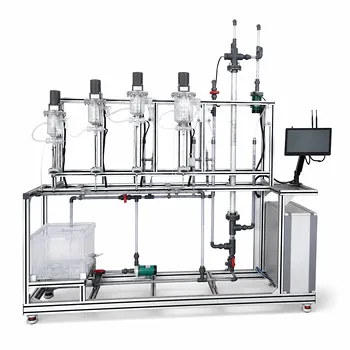
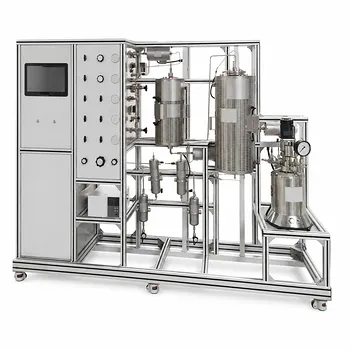
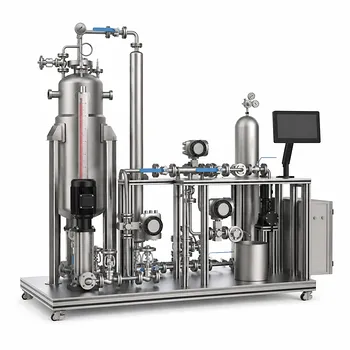
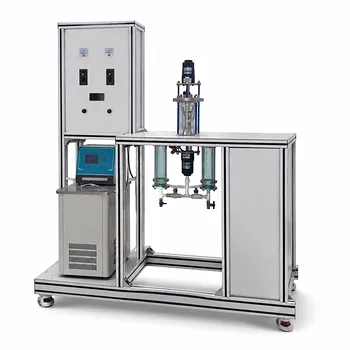
Ensure seamless integration between your software control systems and physical hardware. LABPARK provides premium Educational and Vocational Unit Operations Pilot Plants in chemical engineering, bioprocess & biotech, and environmental & water treatment tailored for universities, research institutes, and enterprises. Need custom solutions or OEM/ODM support? Contact LABPARK today to elevate your laboratory and training capabilities!
Related Products
- Natural Product Extraction Unit Operations Training Pilot Plant
- Ethyl Acetate Synthesis Unit Operations Pilot Plant for Practical Training
- Multi-Modal Distillation Unit Operations Training Pilot Plant
- Electrolyte Distillation Purification and Formulation Educational Pilot Plant
- Carbon Dioxide Hydrogen Methanol Synthesis Educational Unit Operations Pilot Plant
People Also Ask
- How to Demo Solubility Sensitivity in SFE Pilot Plants? Practical Thermodynamics
- How do pilot plants differentiate physical vs chemical extraction? Enhance Chemical Engineering Training
- Why do emulsions form during extraction scale-up? Resolve pilot plant phase separation issues.
- What key factors contribute to emulsion formation during liquid-liquid extraction? Scale-up mitigation strategies.
- How are HTU and NTU applied to determine extraction column height? Guide to Pilot Plant Scaling